
AceGamer Aurora II Wireless Controller Review: Feature‑Rich Budget Gamepad with Hall-Effect Sticks
The AceGamer Aurora II is a multi‑platform wireless controller designed for PC, Android, Nintendo Switch/Switch 2, iOS, and Steam Deck. It combines 2.4G wireless, Bluetooth, and wired connectivity with modern features like Hall effect joysticks, rotary rumble motors, RGB lighting, and programmable back buttons. This review looks at its build quality, latency, cross‑platform support, and day‑to‑day usability to help you decide if it fits your gaming setup.
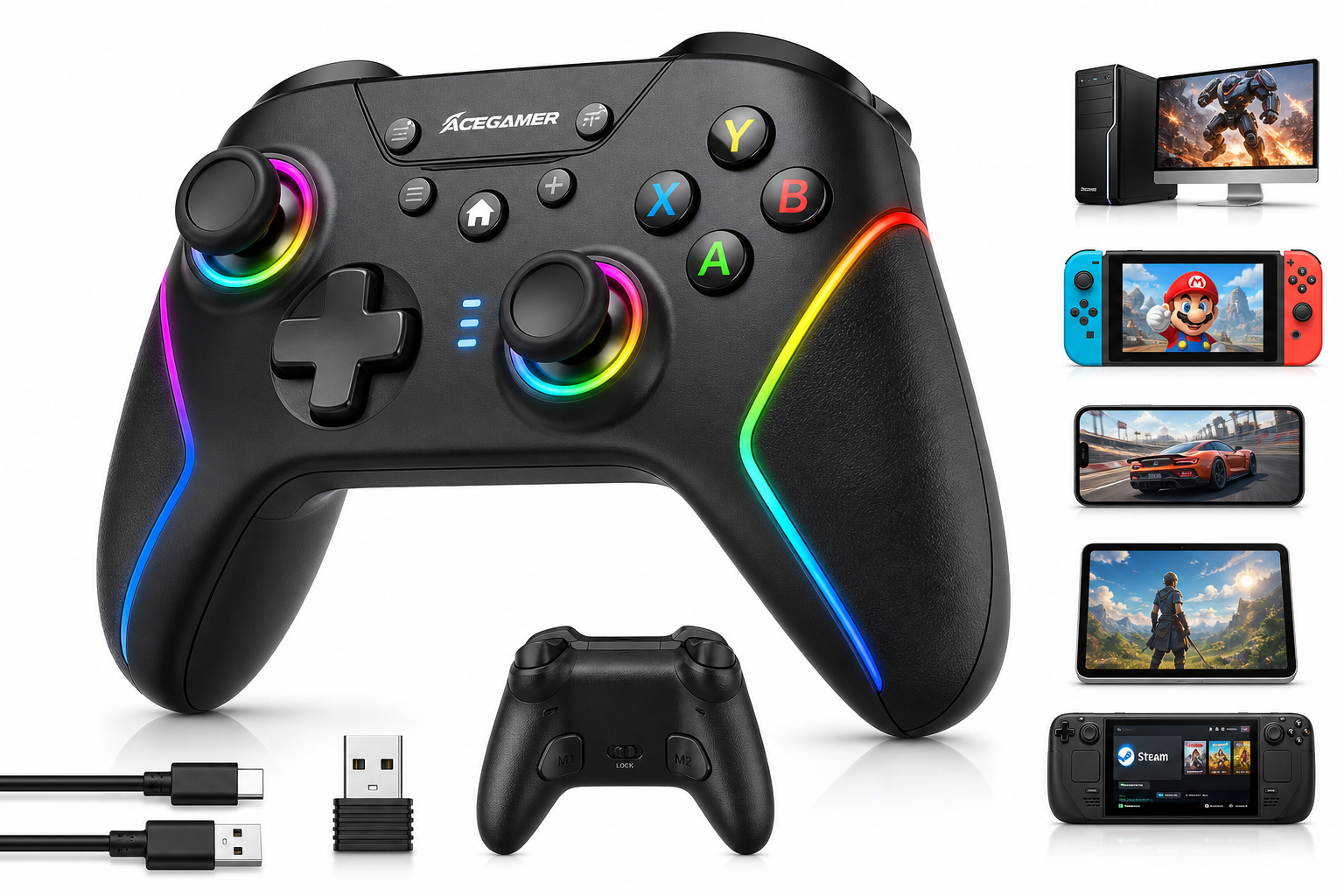
Quick Summary
The AceGamer Aurora II 2.4G Wireless Bluetooth Controller targets gamers who want a flexible, modern gamepad that works across PC, Android, Switch/Switch 2, iOS, and handheld PCs like the Steam Deck. It offers:
- Hall effect joysticks designed to reduce stick drift over time
- 2.4 GHz wireless (via USB dongle), Bluetooth, and wired USB‑C connectivity
- Rotary vibration motors for stronger, more nuanced rumble
- RGB‑lit sticks and accents
- Programmable back buttons with a physical lock switch
At around $24.99 on Amazon, it positions itself as a budget‑friendly alternative to first‑party or premium third‑party controllers, while still offering several enthusiast‑grade features.
Detailed Analysis
Design & Build Quality
The Aurora II follows an asymmetric stick layout similar to an Xbox controller, with a slightly compact shell that should be comfortable for most hand sizes. The plastic construction feels in line with its budget positioning—lighter than an official Xbox or Switch Pro controller, but not flimsy. There is a bit of hollowness to the shell when you tap it, which is common at this price point.
Key design highlights:
- Hall Effect Joysticks: The sticks use magnetic sensors instead of traditional potentiometers, which helps eliminate the wear that often leads to drift over time. Out of the box, they feel smooth with consistent resistance and good return‑to‑center.
- Face and Shoulder Buttons: The face buttons have a fairly short travel with a soft yet defined actuation, suitable for action and fighting games. Triggers are analog (useful on PC and supported platforms), while bumpers are clicky and responsive.
- Back Buttons with Lock: Two rear paddles (M1/M2) can be mapped to other inputs. A simple physical lock switch allows you to disable them instantly—very handy if you pass the controller to someone else or want to avoid accidental presses in menus.
- RGB Lighting: RGB zones, particularly around the Hall sticks, add a visual flair. Effects and brightness can usually be toggled or cycled through with button combos, so you can go from flashy to low‑profile depending on your preference.
Overall build quality is solid for casual to moderate use. Heavy competitive players may prefer a more robust shell, but for the target price bracket the materials and tolerances are respectable.
Connectivity & Compatibility
One of the Aurora II’s main selling points is how many platforms it supports. In practice, each mode behaves a bit differently:
2.4 GHz Wireless (USB Dongle)
- Best for: Windows PC, laptops, some Android TV boxes, and handheld PCs (including many Steam Deck/Windows handheld docks).
- Pros: Low‑latency performance that typically feels as responsive as a wired controller. Very convenient on PCs that don’t have stable Bluetooth.
- Setup: Plug the dongle into a USB‑A port, switch the controller to 2.4G mode, then pair (usually via a brief press of the HOME button until the LED pattern changes). Most PCs recognize it as an XInput (Xbox‑style) controller, making it compatible with the vast majority of modern games.
For many users, this will be the ideal mode: minimal input lag, plug‑and‑play in Steam, Game Pass for PC, and emulator frontends.
Bluetooth
- Best for: Android phones and tablets, iOS devices, Nintendo Switch/Switch 2, and PCs that have reliable Bluetooth stacks.
- Pros: No dongle required, convenient for mobile/handheld setups.
- Trade‑offs: Bluetooth can be more finicky than 2.4G. Depending on your host device’s Bluetooth module and drivers, you may occasionally need to re‑pair or manually reconnect.
The controller usually exposes different Bluetooth modes (e.g., XInput‑style for PC/Android, Switch‑style mode for Nintendo systems). Correctly entering the intended mode before pairing is important, particularly on PC and Switch, to avoid cases where the controller is visible but button inputs are not recognized.
Wired USB‑C
- Best for: Zero‑latency play on PC, use where wireless is restricted, or when the battery is low.
- Pros: Simple and reliable—connect the included (or any data‑capable) USB‑C cable and it functions as a standard wired controller.
- Notes: Many users will only fall back to wired when charging, but it’s a useful fail‑safe if wireless or Bluetooth environments are noisy.
Platform Notes
- PC (Windows): When used via 2.4G or Bluetooth in XInput mode, compatibility is excellent. Most games and launchers treat it as an Xbox‑style controller with full button prompts and vibration support where implemented.
- Nintendo Switch / Switch 2: Works when placed in Switch mode and paired through the console’s controller settings. As with most third‑party pads, it behaves like a generic Pro‑controller‑style device; wake‑from‑sleep behavior may be limited to official controllers, and firmware updates (if any) would need to come from the manufacturer.
- Steam Deck & Windows Handhelds: Over 2.4G, it generally registers as an Xbox controller, integrating smoothly with Steam’s controller configuration layer. Ideal if you want a conventional pad instead of the built‑in Deck controls.
- Android & iOS: Pairs as a Bluetooth gamepad and works well in most controller‑enabled games and cloud services. On some devices, you may need to confirm controller support in individual apps.
Battery Life
The Aurora II uses an internal 1000 mAh rechargeable battery. Exact runtime depends on backlight intensity, vibration strength, and connection mode, but you can reasonably expect several extended play sessions between charges.
- With vibration and RGB enabled, it’s suitable for multi‑hour gaming evenings.
- Turning RGB down or off can extend battery noticeably if you prioritize endurance over aesthetics.
Charging is via USB‑C, and you can continue playing in wired mode while it charges.
Controls, Latency & Performance
In actual gameplay, the Aurora II performs well for a value‑oriented controller:
- Stick Performance: Hall effect sensors give you smooth directional control and precise small movements, which helps in shooters, racing games, and platformers alike.
- Face Buttons: The actuation feels responsive for both casual and moderately competitive play. They don’t have the ultra‑crisp feel of higher‑end tournament pads, but are more than adequate for most users.
- D‑pad: The d‑pad is serviceable for menu navigation and light platforming or fighting games. If you are a serious 2D fighter or retro gamer, you may notice its limitations compared with more specialized pads.
- Latency: On 2.4G, latency is low enough that it effectively feels instant in normal gameplay. Bluetooth latency is quite acceptable for most genres; rhythm and competitive players may still prefer 2.4G or wired.
- Rumble: Rotary vibration motors deliver stronger and more nuanced feedback than the very basic rumble found in ultra‑cheap controllers. It’s not as finely tuned as first‑party implementations, but adds immersion in racing and action titles.
User Experience
Setup & Pairing
The learning curve for mastering the Aurora II’s multiple modes is slightly steeper than with a single‑platform controller, but still manageable:
- Mode Switching is done through specific button combinations at power‑on or via a mode button. Once learned, switching between PC, Switch, and mobile becomes relatively quick.
- Initial Pairing is straightforward in most cases—enter the target mode, hold the pairing combo, and select the controller on your device. On some PCs and smart TVs, you may need to forget and re‑pair the controller when switching modes or devices.
Clear documentation (either in the manual PDF or included leaflet) is important; keeping a quick reference nearby for the first week or two is helpful.
Comfort & Ergonomics
The grips are slightly slimmer than some premium pads, which works well for small to medium hands and is generally comfortable for long sessions. Larger‑handed users may wish the handles were a bit fuller, but the overall shape avoids sharp edges and pressure points.
The texture on the back provides enough grip without being aggressively rough, meaning it remains comfortable if your hands get warm. Button and stick placement is familiar to anyone used to Xbox‑style layouts, and back buttons are reachable without drastically shifting your grip.
Software & Customization
The Aurora II does its configuration directly on the controller:
- Back Button Mapping: Typically done by holding a function key and the target button, then pressing the back button you want to map. This is handy for mapping jump, reload, or crouch to the rear paddles in shooters.
- RGB Patterns & Brightness: Adjustable via on‑pad shortcuts, allowing you to rotate through colors, breathing modes, solid colors, or disable lighting entirely.
- Vibration Strength: Some versions allow you to cycle through rumble intensity levels; if present, this can be valuable for battery savings and comfort.
There’s typically no dedicated desktop customization suite, but for many users, the on‑device options are sufficient.
Pros
- Hall effect joysticks greatly reduce the risk of long‑term stick drift.
- Triple‑mode connectivity: 2.4G wireless, Bluetooth, and wired USB‑C.
- Broad platform support: PC, Android, Nintendo Switch/Switch 2, iOS, and Steam Deck/handheld PCs.
- Programmable back buttons with a physical lock switch to prevent accidental presses.
- RGB lighting around the sticks and body for customizable aesthetics.
- Rotary vibration motors provide stronger, more dynamic rumble than basic bargain controllers.
- Comfortable, familiar layout for most users, especially those used to Xbox‑style controllers.
- Competitive pricing around $24.99, making it appealing as a primary or backup controller.
Cons
- Build materials feel budget‑grade, with a lighter, more hollow shell than flagship controllers.
- Bluetooth behavior can vary across devices; some users may experience occasional pairing/reconnection quirks compared with 2.4G.
- No advanced PC software for deep customization; configuration is limited to on‑controller shortcuts.
- D‑pad is average, fine for casual use but not tailored for hardcore 2D or fighting game enthusiasts.
- Firmware update path (if available) may be less streamlined than big‑brand controllers, requiring more manual steps.
Value Assessment
From a value perspective, the AceGamer Aurora II is compelling. For approximately $24.99, you get:
- Features that used to be reserved for pricier controllers (Hall effect sticks, back buttons, multi‑mode connectivity, RGB).
- A genuinely usable 2.4G dongle for low‑latency PC and handheld play.
- Broad cross‑platform support, allowing one controller to cover a PC, a Switch/Switch 2, an Android phone or tablet, and even a Steam Deck.
The main trade‑offs are in material feel, the absence of companion software, and the occasional Bluetooth quirkiness that often comes with budget multi‑platform devices. If you expect premium fit and finish, you may want to spend more; if you prioritize features‑per‑dollar, the Aurora II competes very well.
For many users, it can serve comfortably as a main controller; for others, it’s an excellent secondary pad for guests, travel, or a secondary platform.
Final Thoughts
The AceGamer Aurora II 2.4G Wireless Bluetooth Controller successfully brings together modern gaming features at an accessible price. Hall effect joysticks, cross‑platform support, back buttons, RGB lighting, and rotary rumble make it stand out in the crowded budget controller market.
It’s not without compromises—mainly in build feel and the sometimes variable behavior of Bluetooth across different systems—but for gamers who want a versatile, affordable, and feature‑rich controller for PC, Switch/Switch 2, Android, iOS, or Steam Deck, the Aurora II is a strong contender.
If you are looking for a cost‑effective way to add a modern, drift‑resistant wireless controller to your setup and can live with a few budget‑tier trade‑offs, the AceGamer Aurora II is well worth considering.